

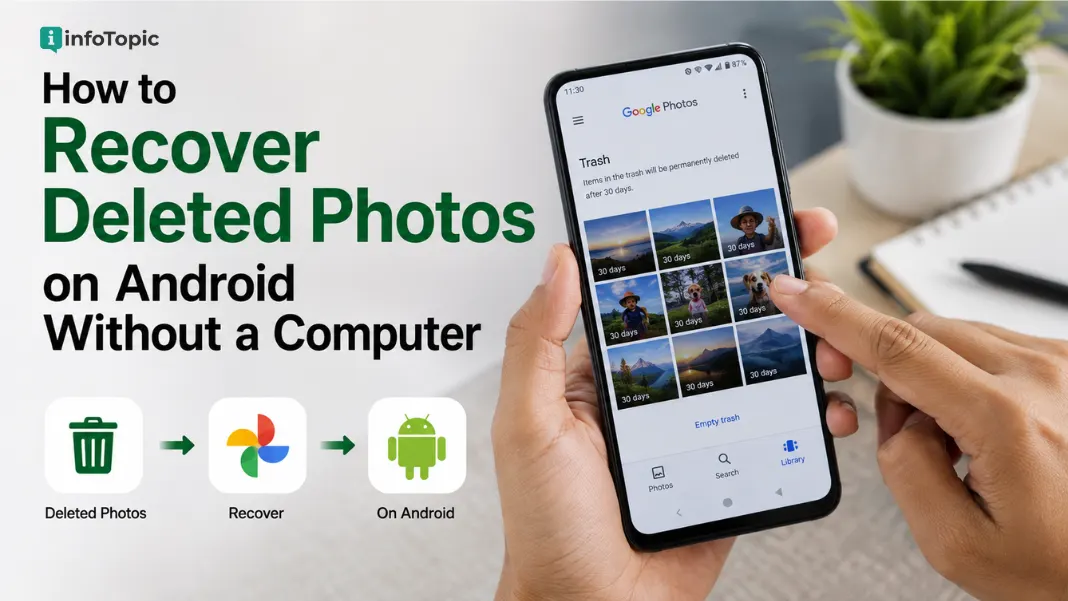
You delete one photo to free up space. Your thumb slips. Forty family pictures from a wedding you weren’t even trying to touch are gone. No laptop nearby, just you and a phone that suddenly feels like it swallowed your memories.
Here’s the good news: at infoTopic, we get asked how to recover deleted photos on Android without a computer more than almost any other tech question we cover. And most of the time, the photos aren’t actually gone. Android and Google Photos both quietly hold onto deleted images for a while before they’re wiped for good. You just need to know where to look, and you need to look fast.
The Short Version
Open Google Photos, tap your profile icon, go to Library, then Trash. If your photos were backed up, they’ll sit there for up to 60 days and a single tap restores them. If Trash comes up empty, check your Gallery app’s own “Recently Deleted” folder next. No computer needed for either step.
That’s the two-minute answer. But which method actually works depends on how your phone deleted the photo in the first place, so let’s get into it properly.
Why Deleted Photos Aren’t Always Gone Immediately
Here’s the thing most people don’t realise: Android almost never deletes a photo the instant you tap the trash icon. It moves it. First to an app-level trash folder, then, only after that folder gets emptied or times out, to the deeper storage space where recovery gets genuinely hard.
Worth knowing why this happens so often in the first place. The average smartphone user now stores close to 2,795 photos in their camera roll, according to PhotoAiD’s 2026 mobile photography data. With that many images stacked up, a slip during a quick cleanup is almost inevitable. It’s not carelessness so much as math.
Think of it less like burning a photo and more like tossing it in a bin that doesn’t get collected for weeks. The file’s data usually still exists on the storage chip. Your phone just stops showing it to you and marks that space as available to overwrite. Until something else actually writes over it, a decent recovery tool, or sometimes just the right folder, can still pull it back.
That’s why speed matters. The longer you keep using your phone after a deletion, especially taking new photos or installing apps, the higher the chance that empty space gets overwritten. If this just happened to you, stop taking new photos for a few minutes and go straight to the Trash folder.
Methods to Recover Deleted Photos on Android Without a Computer
There isn’t one single fix here. It genuinely depends on whether the photo was backed up, how it got deleted, and how much time has passed. We’ll go through all four in the order we’d actually try them ourselves.
Method 1: Check the Google Photos Trash Folder
This is the first place to look, always. If you had backup turned on in Google Photos, even accidentally, deleted images move to Trash and sit there for up to 60 days before they’re gone for good.
Open Google Photos, tap your profile picture in the top right, select Library, then Trash. Scroll through, find what you’re missing, tap and hold to select it, then tap Restore. It goes straight back into your main gallery and any albums it was part of.
We’ve recovered photos this way that people assumed were gone for over a month. Don’t skip this step just because it feels too easy.
Method 2: Check Your Gallery App’s Recently Deleted Folder
Google Photos isn’t the only app with a safety net. Samsung’s Gallery app has its own Recycle Bin. Most stock Android Gallery apps, and quite a few third-party ones, keep a “Recently Deleted” folder too, separate from Google’s.
On a Samsung phone, open Gallery, tap the three-line menu, then Recycle Bin. On other Android skins, look for a similar option under Gallery settings or the app’s main menu. Items usually sit here for 15 to 30 days depending on the manufacturer, which is shorter than Google’s window, so check this one quickly.
This matters because photos taken with the camera app but never backed up to Google Photos often only exist in this local bin. Miss it, and there’s no cloud copy to fall back on.
Method 3: Restore From Your Google Photos Backup
Say the photo isn’t in either Trash folder anymore, or you deleted it from your device’s storage directly rather than through an app. If backup was ever switched on for that photo, it may still exist in your Google Account even after local deletion.
Open Google Photos, check under Library if the item shows up as backed up but hidden from your camera roll. If it’s genuinely missing from the app entirely, your last option is contacting Google Support directly through the Photos help centre, which can sometimes recover items for a short window after permanent deletion, though this isn’t guaranteed.
Method 4: Use a Trusted Photo Recovery App
If both trash folders are empty, and there’s no backup, you’re now trying to pull data back from storage the phone considers “free.” This is where a dedicated photo recovery app for Android comes in, and it’s the one method here where results genuinely vary.
Apps like DiskDigger and Dumpster scan your device’s storage for photo file signatures that haven’t been overwritten yet. No computer required, everything runs on the phone itself. Success rates drop fast on newer Android versions with encrypted storage, so treat this as a last resort rather than a first move.
What to Check Before You Install Any Recovery App
Not every app in the Play Store claiming to “recover 100% of deleted photos” is being honest with you. Before installing one, check three things: the developer has other apps with a track record, permissions requested match what the app actually needs, and reviews mention real recovered files, not just generic five-star praise.
We’re not going to recommend a specific app blindly here. Test one, see what it finds in a scan before paying for anything, and walk away if it demands payment before showing you even a preview of recoverable files.
Step-by-Step: Recovering Deleted Android Photos Without a Computer
Here’s the exact sequence for the most common scenario, a recently backed-up photo you deleted by accident.
- Open the Google Photos app on your phone.
- Tap Library, then select Trash.
- Find the deleted photo or photos and tap to select them.
- Tap Restore to move them back to your main gallery.
The result is your photo back in your camera roll and any album it belonged to, usually within a couple of seconds.
Note: Google Photos Trash keeps items for 60 days. If a photo was backed up before deletion, it stays recoverable in Trash for 60 days. Items that were never backed up drop out of Trash after just 30 days on Android 11 and up. Once that window closes, the photo is genuinely, permanently gone from Google’s side, and you’re back to Method 4.
If Step 4 turns up nothing, check whether backup was actually enabled for that photo before it disappeared. Go to Google Photos, tap your profile icon, then Photos settings, then Backup, and confirm it’s switched on going forward, even if it’s too late for this particular photo.
What Actually Happened When We Tried to Recover a Client’s Event Photos
Back in late 2024, we were helping a small events business in Ahmedabad sort through phone storage before a big shoot. Someone on their team deleted an entire folder of pre-event venue photos, about 60 images, trying to clear space for the day’s shoot. No computer around, just a phone and a deadline in four hours.
Google Photos Trash had nothing. Turned out backup had been switched off for months to save mobile data. Gallery app’s Recently Deleted folder was empty too, the images had been on the phone for over three weeks already.
We tried a recovery app scan as a last resort, honestly expecting nothing. It found 41 of the 60 photos, all recoverable, all usable quality. Not a full save, but enough. The lesson stuck with us: backup being off is the single biggest reason these situations go from “annoying” to “actually lost.”
DiskDigger vs Dumpster vs Google Photos: Which Actually Works?
If you’re deciding where to start, here’s how the three main routes compare for recovering deleted photos on Android.
| Tool | Best For | Free or Paid | Difficulty | Success Rate |
|---|---|---|---|---|
| Google Photos Trash | Backed-up photos, recent deletions | Free | Very Easy | Very High (if backed up) |
| Gallery Recently Deleted | Local photos never backed up | Free | Very Easy | High (within 15-30 days) |
| DiskDigger / Dumpster | Older deletions, no backup at all | Free tier, paid unlock | Moderate | Variable, drops with time |
Notice the pattern. The easiest, most reliable methods cost nothing and take under a minute. The recovery apps only earn their place once those free options have already failed.
How to Prevent Future Photo Loss
Honestly? Most of the panic around recovering deleted photos on Android could’ve been avoided with one setting. Turn on Google Photos backup and forget about it.
Go to Google Photos, tap your profile icon, then Photos settings, then Backup, and switch it on. Choose “Storage saver” quality if you’re worried about running out of Google account storage, or “Original quality” if you have space and want full resolution kept.
Beyond that:
- Set backup to run automatically over Wi-Fi, not just when you remember
- Check Trash occasionally rather than assuming it’s handled
- Avoid emptying Trash manually unless you’re certain about every item
- If a memory card is involved, know that deleted files can linger there even after your Gallery app shows them gone
None of this is complicated. It’s just the kind of setting people skip until the day they need it and it isn’t there.
FAQs
Q: How do I recover deleted photos on Android without a computer?
A: Open Google Photos, go to Library, then Trash, and restore the photo directly from your phone. No computer or cable needed for this method. If the photo isn’t there, check your Gallery app’s own Recently Deleted folder next.
Q: Where do deleted photos actually go on Android?
A: They move to a temporary trash folder first, either inside Google Photos or your Gallery app, before being permanently erased. The underlying file data often still sits on your device’s storage even after that, at least until new data overwrites it.
Q: How long does Google Photos keep deleted items in Trash?
A: Sixty days for photos that were backed up before deletion, and just 30 days for photos that weren’t, according to Google’s own Photos support documentation. After that window, Google can’t restore them.
Q: Can I recover photos deleted more than 60 days ago?
A: It’s difficult but not always impossible. Your best shot is a dedicated photo recovery app scanning your device storage directly, since the Trash window has already closed by that point. Success depends heavily on how much you’ve used the phone since deletion.
Q: Is it safe to use a third-party photo recovery app?
A: Mostly yes, if you stick to well-reviewed, established apps and pay attention to what permissions they request. Skip anything that asks for payment before showing you a scan preview, and skip anything demanding permissions unrelated to storage access.
Q: Does a factory reset delete photos permanently?
A: Pretty much, yes. A factory reset wipes local storage completely, and unless those photos were backed up to Google Photos beforehand, recovery apps have almost nothing left to scan. Always back up before resetting, not after.
Q: Why can’t I find my deleted photos in the Google Photos Trash?
A: Usually because backup wasn’t turned on when the photo was taken or deleted, so it never made it to Google’s side of Trash at all. Check your Gallery app’s local Recently Deleted folder instead, that’s a separate system from Google Photos.
Q: What’s the best free app to recover deleted photos on Android in 2026?
A: DiskDigger and Dumpster are the two most commonly recommended free options, both scanning device storage without needing a computer. Neither guarantees full recovery, especially on newer, encrypted Android builds, so treat them as a backup plan rather than a first choice.How to Recover Deleted Photos on Android Without a Computer
You delete one photo to free up space. Your thumb slips. Forty family pictures from a wedding you weren’t even trying to touch are gone. No laptop nearby, just you and a phone that suddenly feels like it swallowed your memories.
Here’s the good news: at infoTopic, we get asked how to recover deleted photos on Android without a computer more than almost any other tech question we cover. And most of the time, the photos aren’t actually gone. Android and Google Photos both quietly hold onto deleted images for a while before they’re wiped for good. You just need to know where to look, and you need to look fast.
The Short Version
Open Google Photos, tap your profile icon, go to Library, then Trash. If your photos were backed up, they’ll sit there for up to 60 days and a single tap restores them. If Trash comes up empty, check your Gallery app’s own “Recently Deleted” folder next. No computer needed for either step.
That’s the two-minute answer. But which method actually works depends on how your phone deleted the photo in the first place, so let’s get into it properly.
Why Deleted Photos Aren’t Always Gone Immediately
Here’s the thing most people don’t realise: Android almost never deletes a photo the instant you tap the trash icon. It moves it. First to an app-level trash folder, then, only after that folder gets emptied or times out, to the deeper storage space where recovery gets genuinely hard.
Worth knowing why this happens so often in the first place. The average smartphone user now stores close to 2,795 photos in their camera roll, according to PhotoAiD’s 2026 mobile photography data. With that many images stacked up, a slip during a quick cleanup is almost inevitable. It’s not carelessness so much as math.
Think of it less like burning a photo and more like tossing it in a bin that doesn’t get collected for weeks. The file’s data usually still exists on the storage chip. Your phone just stops showing it to you and marks that space as available to overwrite. Until something else actually writes over it, a decent recovery tool, or sometimes just the right folder, can still pull it back.
That’s why speed matters. The longer you keep using your phone after a deletion, especially taking new photos or installing apps, the higher the chance that empty space gets overwritten. If this just happened to you, stop taking new photos for a few minutes and go straight to the Trash folder.
Methods to Recover Deleted Photos on Android Without a Computer
There isn’t one single fix here. It genuinely depends on whether the photo was backed up, how it got deleted, and how much time has passed. We’ll go through all four in the order we’d actually try them ourselves.
Method 1: Check the Google Photos Trash Folder
This is the first place to look, always. If you had backup turned on in Google Photos, even accidentally, deleted images move to Trash and sit there for up to 60 days before they’re gone for good.
Open Google Photos, tap your profile picture in the top right, select Library, then Trash. Scroll through, find what you’re missing, tap and hold to select it, then tap Restore. It goes straight back into your main gallery and any albums it was part of.
We’ve recovered photos this way that people assumed were gone for over a month. Don’t skip this step just because it feels too easy.
Method 2: Check Your Gallery App’s Recently Deleted Folder
Google Photos isn’t the only app with a safety net. Samsung’s Gallery app has its own Recycle Bin. Most stock Android Gallery apps, and quite a few third-party ones, keep a “Recently Deleted” folder too, separate from Google’s.
On a Samsung phone, open Gallery, tap the three-line menu, then Recycle Bin. On other Android skins, look for a similar option under Gallery settings or the app’s main menu. Items usually sit here for 15 to 30 days depending on the manufacturer, which is shorter than Google’s window, so check this one quickly.
This matters because photos taken with the camera app but never backed up to Google Photos often only exist in this local bin. Miss it, and there’s no cloud copy to fall back on.
Method 3: Restore From Your Google Photos Backup
Say the photo isn’t in either Trash folder anymore, or you deleted it from your device’s storage directly rather than through an app. If backup was ever switched on for that photo, it may still exist in your Google Account even after local deletion.
Open Google Photos, check under Library if the item shows up as backed up but hidden from your camera roll. If it’s genuinely missing from the app entirely, your last option is contacting Google Support directly through the Photos help centre, which can sometimes recover items for a short window after permanent deletion, though this isn’t guaranteed.
Method 4: Use a Trusted Photo Recovery App
If both trash folders are empty, and there’s no backup, you’re now trying to pull data back from storage the phone considers “free.” This is where a dedicated photo recovery app for Android comes in, and it’s the one method here where results genuinely vary.
Apps like DiskDigger and Dumpster scan your device’s storage for photo file signatures that haven’t been overwritten yet. No computer required, everything runs on the phone itself. Success rates drop fast on newer Android versions with encrypted storage, so treat this as a last resort rather than a first move.
What to Check Before You Install Any Recovery App
Not every app in the Play Store claiming to “recover 100% of deleted photos” is being honest with you. Before installing one, check three things: the developer has other apps with a track record, permissions requested match what the app actually needs, and reviews mention real recovered files, not just generic five-star praise.
We’re not going to recommend a specific app blindly here. Test one, see what it finds in a scan before paying for anything, and walk away if it demands payment before showing you even a preview of recoverable files.
Step-by-Step: Recovering Deleted Android Photos Without a Computer
Here’s the exact sequence for the most common scenario, a recently backed-up photo you deleted by accident.
- Open the Google Photos app on your phone.
- Tap Library, then select Trash.
- Find the deleted photo or photos and tap to select them.
- Tap Restore to move them back to your main gallery.
The result is your photo back in your camera roll and any album it belonged to, usually within a couple of seconds.
Note: Google Photos Trash keeps items for 60 days. If a photo was backed up before deletion, it stays recoverable in Trash for 60 days. Items that were never backed up drop out of Trash after just 30 days on Android 11 and up. Once that window closes, the photo is genuinely, permanently gone from Google’s side, and you’re back to Method 4.
If Step 4 turns up nothing, check whether backup was actually enabled for that photo before it disappeared. Go to Google Photos, tap your profile icon, then Photos settings, then Backup, and confirm it’s switched on going forward, even if it’s too late for this particular photo.
What Actually Happened When We Tried to Recover a Client’s Event Photos
Back in late 2024, we were helping a small events business in Ahmedabad sort through phone storage before a big shoot. Someone on their team deleted an entire folder of pre-event venue photos, about 60 images, trying to clear space for the day’s shoot. No computer around, just a phone and a deadline in four hours.
Google Photos Trash had nothing. Turned out backup had been switched off for months to save mobile data. Gallery app’s Recently Deleted folder was empty too, the images had been on the phone for over three weeks already.
We tried a recovery app scan as a last resort, honestly expecting nothing. It found 41 of the 60 photos, all recoverable, all usable quality. Not a full save, but enough. The lesson stuck with us: backup being off is the single biggest reason these situations go from “annoying” to “actually lost.”
DiskDigger vs Dumpster vs Google Photos: Which Actually Works?
If you’re deciding where to start, here’s how the three main routes compare for recovering deleted photos on Android.
| Tool | Best For | Free or Paid | Difficulty | Success Rate |
|---|---|---|---|---|
| Google Photos Trash | Backed-up photos, recent deletions | Free | Very Easy | Very High (if backed up) |
| Gallery Recently Deleted | Local photos never backed up | Free | Very Easy | High (within 15-30 days) |
| DiskDigger / Dumpster | Older deletions, no backup at all | Free tier, paid unlock | Moderate | Variable, drops with time |
Notice the pattern. The easiest, most reliable methods cost nothing and take under a minute. The recovery apps only earn their place once those free options have already failed.
How to Prevent Future Photo Loss
Honestly? Most of the panic around recovering deleted photos on Android could’ve been avoided with one setting. Turn on Google Photos backup and forget about it.
Go to Google Photos, tap your profile icon, then Photos settings, then Backup, and switch it on. Choose “Storage saver” quality if you’re worried about running out of Google account storage, or “Original quality” if you have space and want full resolution kept.
Beyond that:
- Set backup to run automatically over Wi-Fi, not just when you remember
- Check Trash occasionally rather than assuming it’s handled
- Avoid emptying Trash manually unless you’re certain about every item
- If a memory card is involved, know that deleted files can linger there even after your Gallery app shows them gone
None of this is complicated. It’s just the kind of setting people skip until the day they need it and it isn’t there.
FAQs
Q: How do I recover deleted photos on Android without a computer?
A: Open Google Photos, go to Library, then Trash, and restore the photo directly from your phone. No computer or cable needed for this method. If the photo isn’t there, check your Gallery app’s own Recently Deleted folder next.
Q: Where do deleted photos actually go on Android?
A: They move to a temporary trash folder first, either inside Google Photos or your Gallery app, before being permanently erased. The underlying file data often still sits on your device’s storage even after that, at least until new data overwrites it.
Q: How long does Google Photos keep deleted items in Trash?
A: Sixty days for photos that were backed up before deletion, and just 30 days for photos that weren’t, according to Google’s own Photos support documentation. After that window, Google can’t restore them.
Q: Can I recover photos deleted more than 60 days ago?
A: It’s difficult but not always impossible. Your best shot is a dedicated photo recovery app scanning your device storage directly, since the Trash window has already closed by that point. Success depends heavily on how much you’ve used the phone since deletion.
Q: Is it safe to use a third-party photo recovery app?
A: Mostly yes, if you stick to well-reviewed, established apps and pay attention to what permissions they request. Skip anything that asks for payment before showing you a scan preview, and skip anything demanding permissions unrelated to storage access.
Q: Does a factory reset delete photos permanently?
A: Pretty much, yes. A factory reset wipes local storage completely, and unless those photos were backed up to Google Photos beforehand, recovery apps have almost nothing left to scan. Always back up before resetting, not after.
Q: Why can’t I find my deleted photos in the Google Photos Trash?
A: Usually because backup wasn’t turned on when the photo was taken or deleted, so it never made it to Google’s side of Trash at all. Check your Gallery app’s local Recently Deleted folder instead, that’s a separate system from Google Photos.
Q: What’s the best free app to recover deleted photos on Android in 2026?
A: DiskDigger and Dumpster are the two most commonly recommended free options, both scanning device storage without needing a computer. Neither guarantees full recovery, especially on newer, encrypted Android builds, so treat them as a backup plan rather than a first choice.

Founder, infoTopic
Publisher & Editorial Lead
Hardik Vaghani is the founder of InfoTopic, a content platform covering fitness, technology, gadgets, style, and travel for Indian readers. He personally handles InfoTopic’s editorial process, content research, and site accuracy, following a consistent research and testing process to ensure every guide is well researched, up to date, and genuinely useful.
He is focused on building InfoTopic into a reliable, India-first resource, with pricing, availability, and recommendations verified for the Indian market rather than generic, translated content.
Focus areas: Editorial Standards | Content Accuracy | Site Research & Verification | India Market Testing


